
Everyday foods and branded products
Search by food name, brand or barcode number. Read a nutrient panel and choose the record that matches the food you mean.
Free utilities
Find a food.
Read its nutrients.
Understand its source.
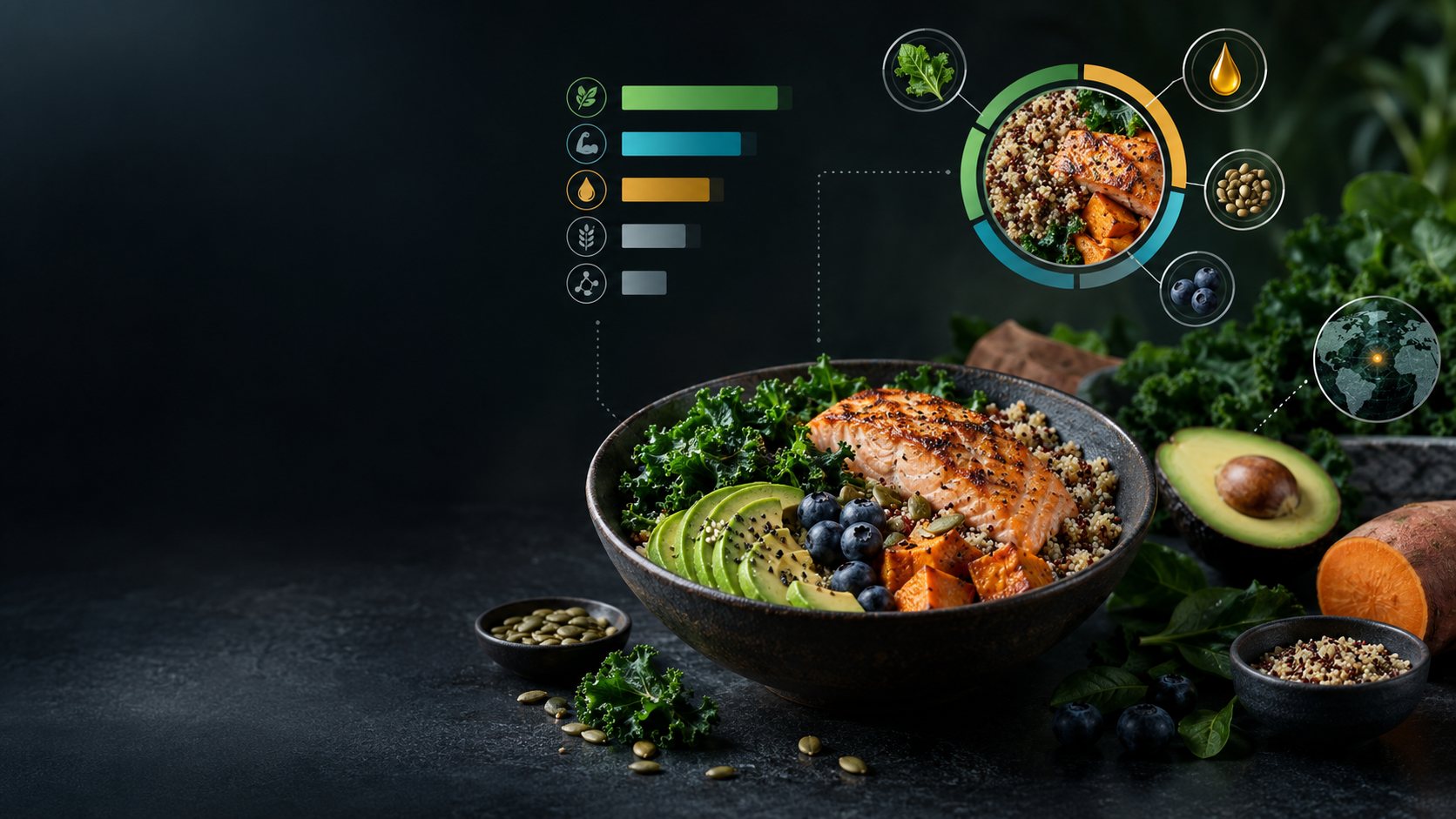
Food. Quantities. Context.
Explore reported nutrition with the quantity and source alongside it.
Search by food name, brand or barcode number. Read a nutrient panel and choose the record that matches the food you mean.
VISINVOKE hosts USDA FoodData Central public-domain data. Records distinguish their data type and version, without adverts or shop links.
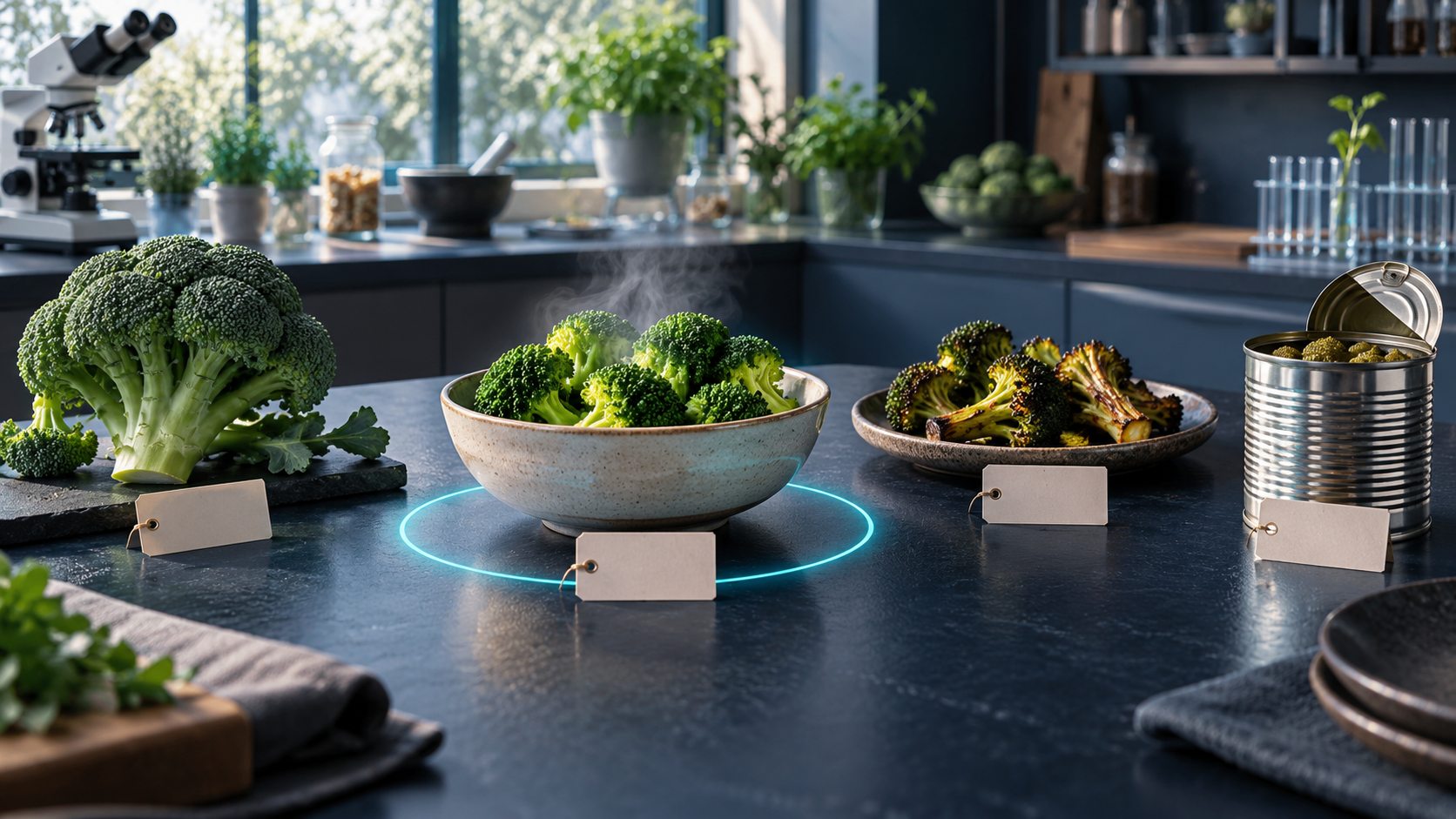
Choose the food record
The illustration places raw, steamed, roasted and canned broccoli beside one another, with the steaming bowl highlighted.
Choose a record that matches the food and its preparation. A generic food entry and a branded label entry describe different kinds of evidence.
What you can explore
Food information that keeps its basis visible.
Search everyday and generic foods by name. Find branded records by name, brand or barcode number.
Read energy in kcal and kJ alongside protein, fat, carbohydrate, fibre, sugars, vitamins and minerals.
View nutrients per 100 g or for a published serving. Keep the quantity basis visible when comparing records.
Bring food records together to compare their reported nutrient values on a like-for-like basis.
Find high or low values for a selected nutrient within a data type, rather than mixing unlike record types.
Distinguish Foundation, standard reference, survey and branded label data. Measurement and label rounding can differ.
Keep gaps visible. An unreported nutrient is not presented as an invented zero.
See the source, data type and USDA FoodData Central data version behind a record.
Read label values as provided. Brand names identify products and do not imply endorsement.
Use Food & Nutrition on Windows and Android with your VISINVOKE account, without adverts or shop links.
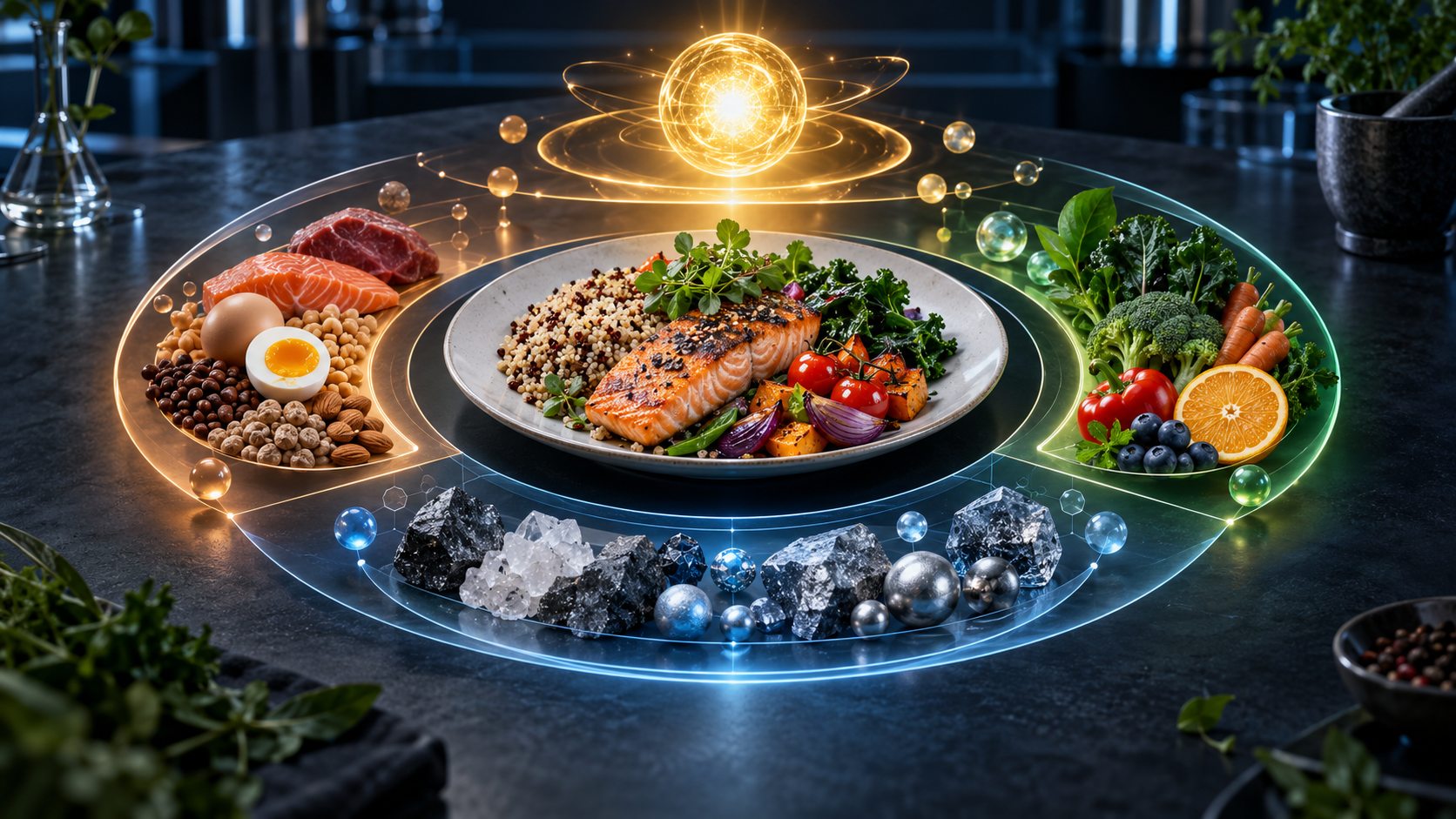
Read the nutrient panel
The illustration groups a meal, protein foods and produce around stylised nutrient symbols. It shows the breadth of the subject, without assigning measured values to the pictured foods.
Read energy in kcal and kJ, macronutrients, vitamins and minerals. Where a value is missing, it remains not reported.
A clear route through the data
Keep the food, quantity and record type together.
Search by name, brand or barcode number. Check that the record describes the food and preparation you intend.
Explore energy, protein, fat, carbohydrate, fibre, sugars, vitamins and minerals. Retain any not-reported values.
Choose per 100 g or a published serving, then compare food records side by side on the same basis.
Read the source, data type and USDA FoodData Central data version. For a purchased product, check its current label.
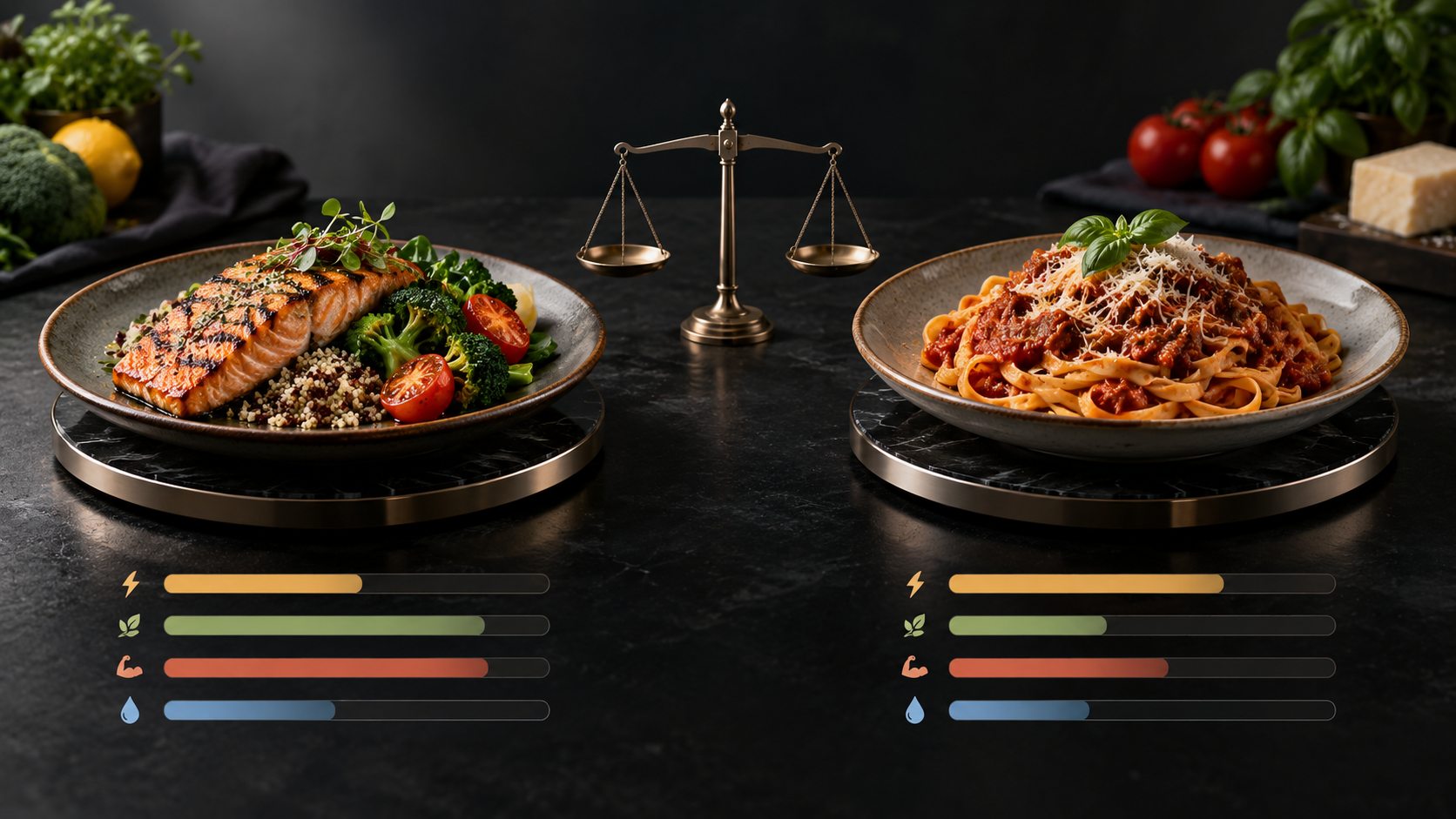
Compare foods side by side
Two plates sit at equal scale around a balance in this illustration. The bars are visual symbols, not measured nutrient values for the meals.
Compare reported values with a consistent quantity basis. Rank high or low values for a chosen nutrient within a data type, keeping measurement and label rounding in context.
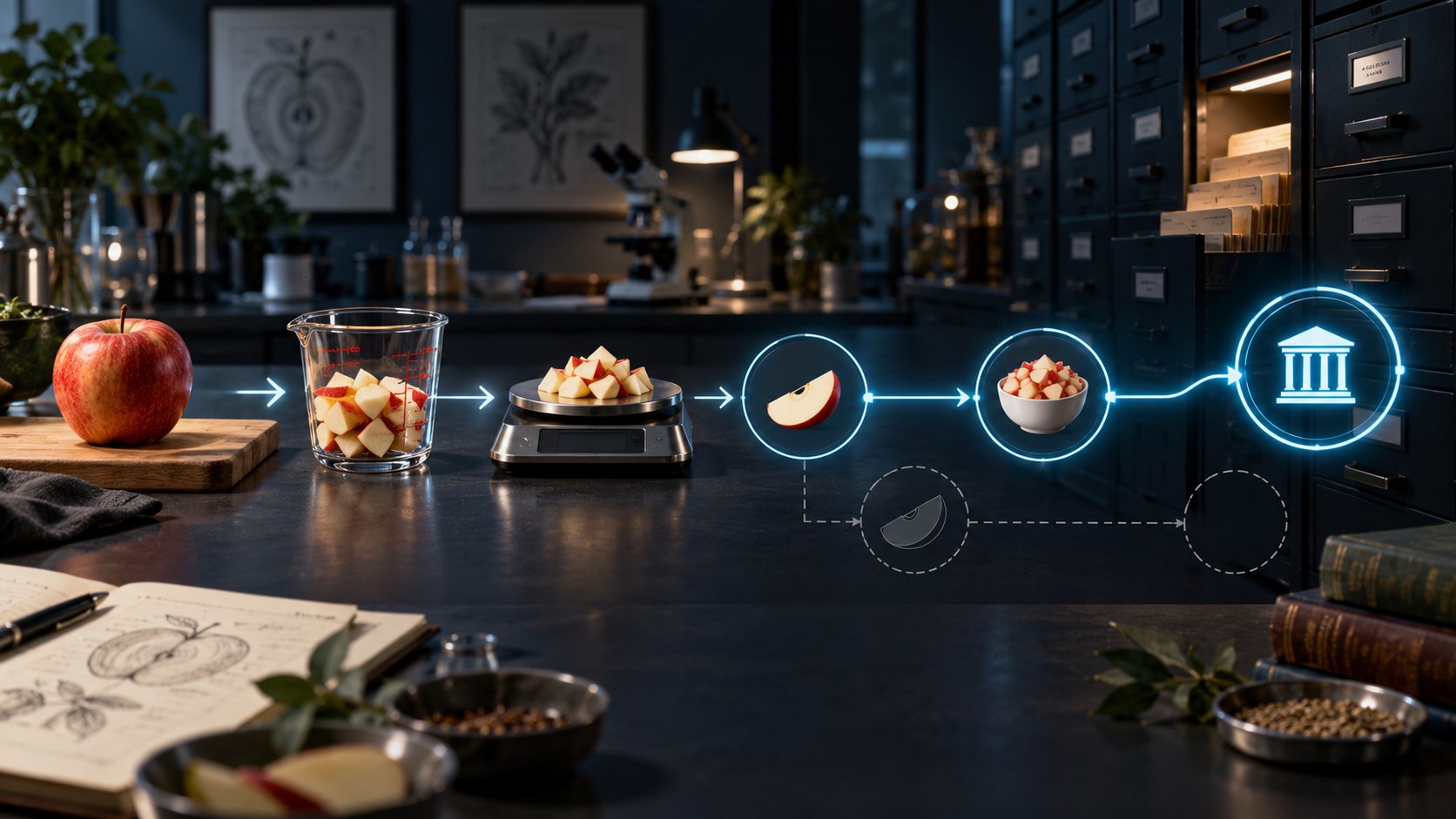
Serving quantities and sources
The illustration traces an apple through a measuring cup and scales to a source archive. It brings quantities, preparation and provenance into one visual chain.
View values per 100 g or for a published serving. Keep the source and data version visible so that the numbers retain their context.
The detail behind a value
Transparent reference information helps you understand what is reported.
Foundation, standard reference, survey and branded label records reflect different sources and methods. Compare within a data type when ranking a nutrient.
An unreported nutrient is a gap in the record. Food & Nutrition keeps it marked as not reported rather than treating the gap as zero.
Data comes from USDA FoodData Central, hosted by VISINVOKE as a public-domain reference. Branded values are shown as stated; brand names identify products without endorsement.
Food & Nutrition provides reference information, not dietary or medical advice. Check the label on the product you buy.
Your workspace and related products
Open VISINVOKE products through your account.

Open Food & Nutrition and your other VISINVOKE products in a signed-in Windows desktop workspace.

Use supported file conversions for everyday documents, images and spreadsheets.
Images are product illustrations, not application screens or measured nutrition data for the pictured foods.
Questions and answers
Search, nutrients, quantities, sources and access at a glance.
A free, ad-free food reference inside VISINVOKE. Search everyday and branded foods, read nutrient panels, compare quantities and see where the data comes from.
Search generic and everyday foods by name, or branded records by name, brand or barcode number. Choose the record that matches the food and preparation you are examining.
The nutrient panel includes energy in kcal and kJ, protein, fat, carbohydrate, fibre, sugars, vitamins and minerals. Missing values remain marked as not reported.
Use a consistent per 100 g or published serving basis. Compare records side by side and rank a chosen nutrient within a data type. Foundation, standard reference, survey and branded label records can differ in measurement and rounding.
VISINVOKE hosts USDA FoodData Central public-domain data. Food records show their source, data type and data version. Branded label values are shown as stated, with brand names used to identify products.
Food & Nutrition is free with a VISINVOKE account in Desktop Control Centre on Windows and in the Android in-app host. It is reference information, not dietary or medical advice. Check the label on the product you buy.
Continue in VISINVOKE
Create a free VISINVOKE account or sign in to your existing account. Get Desktop Control Centre through your account installer page.
Open Food & Nutrition on Windows or in the Android in-app host. It is free with your VISINVOKE account.